Save your text.
Create a reusable message and organize it in a category that makes sense to you.
Quick Text Inserterby Agentive CSA
Type a shortcut. Insert your saved text.
Save frequently used messages, organize them into categories, and insert them with custom autotext shortcuts. Quick Text Inserter is a free, portable Windows text snippet manager from Agentive CSA.
Version 1.08 · Free portable Windows app · No installation required
;trquoteInteractive illustration. The Windows app inserts saved text into the application you’re using; this preview stays on this page.
Use your own approved messages for inquiries, follow-ups, directions, and other information you share regularly.
Create a reusable message and organize it in a category that makes sense to you.
Give it a memorable trigger, such as ;quote or ;followup.
Type the trigger followed by Space, or use Ctrl + Alt + Space to open the snippet picker. Review your message before sending.
Keep recurring emails, follow-ups, appointment messages, and customer replies ready to insert. You write the text and choose when to use it.
Assign a memorable shortcut to each snippet. Type it followed by Space to insert your saved text into a compatible Windows application.
Create and rename categories for your workflow. Search your saved snippets to find the wording you need.
New categories and snippet changes save automatically in your Windows user profile. No separate Save button is needed.
Press Ctrl + Alt + Space to open the snippet picker, or use the manager’s Insert into app and Copy text buttons.
Start with a dark interface, or switch to light mode. The app remembers your choice.
Export your categories and snippets to a JSON backup. Import a backup to restore your collection; importing replaces the current collection.
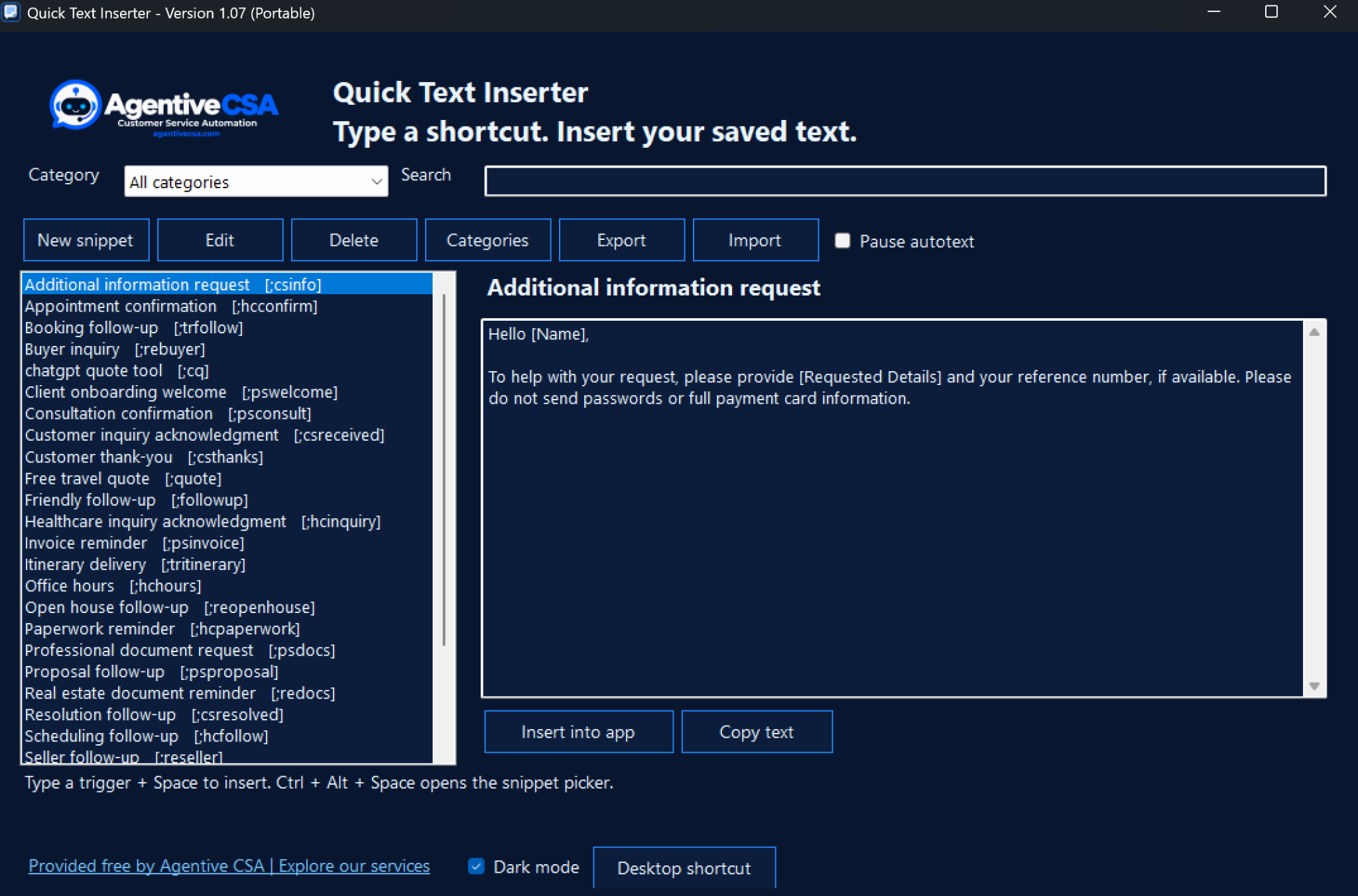
New users start with five sample snippets each for Travel, Healthcare, Real Estate, Customer Service, and Professional Services. Choose an industry to preview an included message, then adapt it to your business.
Edit sample text before using it. Placeholders such as [Name] and [Date] are ordinary text to replace, not automatic form fields.
;trquoteThank you for your interest! Please send your preferred travel dates, destination, number of travelers, and approximate budget so we can prepare your free quote.
| Industry | Five starting templates |
|---|---|
| Travel | Travel quote request, Booking follow-up, Travel payment reminder, Itinerary delivery, Welcome home |
| Healthcare | Appointment confirmation, Scheduling follow-up, Paperwork reminder, Office hours, Healthcare inquiry acknowledgment |
| Real Estate | Buyer inquiry, Showing confirmation, Seller follow-up, Real estate document reminder, Open house follow-up |
| Customer Service | Customer inquiry acknowledgment, Additional information request, Status update, Resolution follow-up, Customer thank-you |
| Professional Services | Consultation confirmation, Proposal follow-up, Client onboarding welcome, Professional document request, Invoice reminder |
 A free tool from Agentive CSA
Get version 1.08 for Windows, provided free by Agentive CSA. No installer or PowerShell is needed.
Download count loading…
ZIP download · 1.03 MB · Includes Quick-Text-Inserter.exe
Internet access is needed for registration and email verification. Once activated, the app can be used offline.
Before using the app, read the Freeware Terms and Disclaimer. Acceptance is required in the app on first launch and when the terms change.
A text inserter inserts a longer saved message when you type a short trigger. Quick Text Inserter calls these autotext shortcuts: for example, typing ;trquote followed by Space inserts your saved travel quote request.
Use it in compatible Windows text fields, including Notepad and many email and browser applications. Behavior can vary by application and permissions. Test your shortcuts in the programs you use; compatibility with every application is not guaranteed.
No app installer or PowerShell launcher is required. Extract the ZIP, then run Quick-Text-Inserter.exe. Your Windows PC needs a compatible .NET Framework 4.x runtime. The program stores its settings and snippets in your Windows user profile.
Yes. Enter your name, email address, and industry, then verify your email with the code sent to your inbox. Check spam or junk if you do not see it. Internet access is needed for this step.
After successful activation, you can use your locally saved snippets offline on the activated Windows profile and device.
Yes. Categories and snippets save automatically. Use Export to keep a separate backup of important text. Import restores a backup by replacing your current categories and snippets.
Snippets stay in your local Windows user profile and are not sent to the registration service. Registration submits your contact details and industry for email verification. See the Privacy Policy.
Closing the manager window leaves the app running in the Windows system tray. Choose Exit from its tray menu when you want to stop it. You can also pause autotext from the manager.
It inserts text you have already saved. You control the wording and decide when to use it. Review each message and adjust any names, dates, or other details before sending.
Yes. Quick Text Inserter is being offered as a free tool by Agentive CSA. Our AI receptionist, web chatbot, and website services are separate paid services.
The desktop tool is for Windows with a compatible .NET Framework 4.x runtime. It is not a Mac or mobile app. Confirm compatibility with the applications you use before relying on it for your daily work.
No. Inserting saved text does not send it. You review the message and use your application’s normal send action.
The Windows tool saves snippets locally in your Windows user profile. Keep a backup of important messages and avoid storing passwords or sensitive customer information in reusable text.
That is the earlier name. Quick Text Inserter by Agentive CSA is the current name, starting with the branded release.
When you also need help answering calls and collecting website inquiries, Agentive CSA’s AI receptionist and web chatbot can capture contact details and notify your team for immediate follow-up.